How to Download, Install, and Activate AVG Antivirus for Mac?

Introduction:
Welcome to this instructional guide on the procedure for downloading, installing, and activating AVG Antivirus for Mac users. Whether you want to enhance your computer's security or protect your personal data, AVG Antivirus is a smart choice. Follow the steps below carefully to set up this effective security solution on your Mac. We will guide you through each step using simple terms and clear instructions to make the process easy. Get ready to strengthen your Mac’s security with AVG Antivirus!
-
Requirements:
-
AVG Antivirus download file.
-
Operating System:
Apple macOS 12.x (Monterey)
Apple macOS 11.x (Big Sur)
Apple macOS 10.15.x (Catalina)
Apple macOS 10.14.x (Mojave)
Apple macOS 10.13.x (High Sierra)
Apple macOS 10.12.x (Sierra)
Apple Mac OS X 10.11.x (El Capitan)
- Mac with an Intel 64-bit processor.
- 512 MB of RAM or more (1 GB RAM or more recommended).
- 750 MB of available disk space.
- Internet connection for downloading, activation, and managing updates for the application and antivirus databases.
-
-
Steps to Follow:
-
Download and Install AVG Antivirus for macOS:
-
Once you receive your order details, simply click on the download link to start downloading your AVG Antivirus software.

-
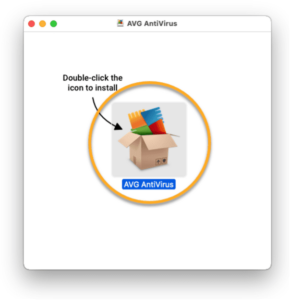
Double-click on the installation file named "avg_mac_security_online.dmg".
-
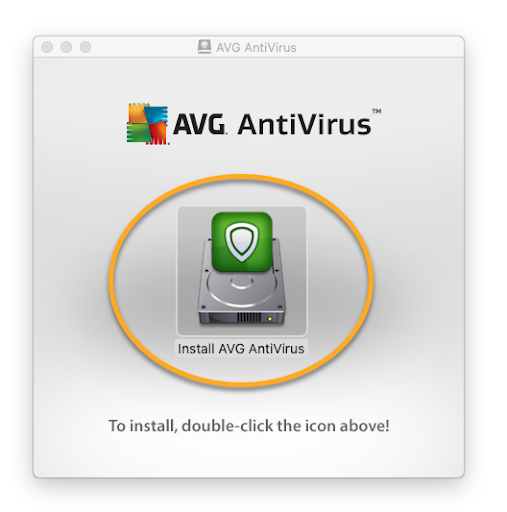
Select the option "Install AVG AntiVirus" by clicking on it.
-
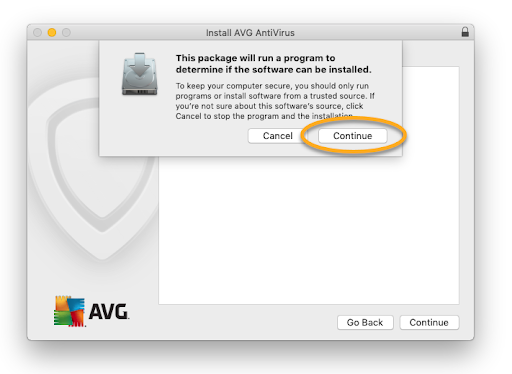
Click "Continue".
-
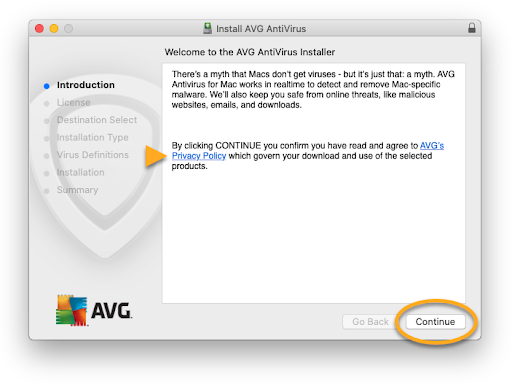
Carefully read AVG’s privacy policy, then press the "Continue" button.
-
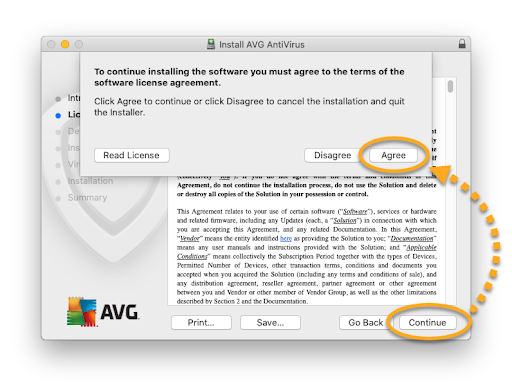
Press "Continue" to indicate that you have read the End User License Agreement, then click "Agree" to confirm your acceptance of the terms and conditions.
-
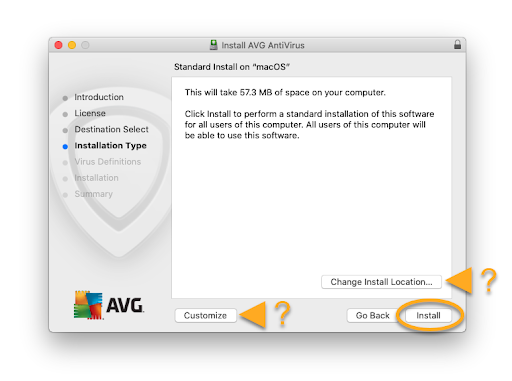
Click "Install" to proceed with the default installation, or choose "Change Installation Location..." or "Customize" if you wish to adjust the default setup.
-
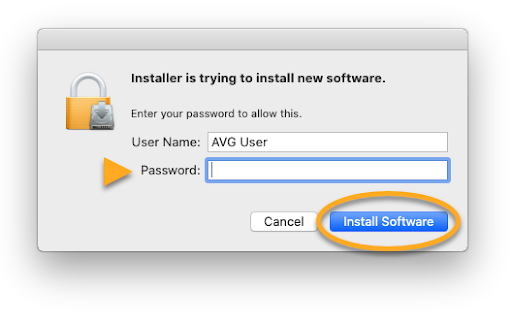
If prompted, use your Touch ID (fingerprint) or enter your administrator username and password. Then, click "Install Software".
-
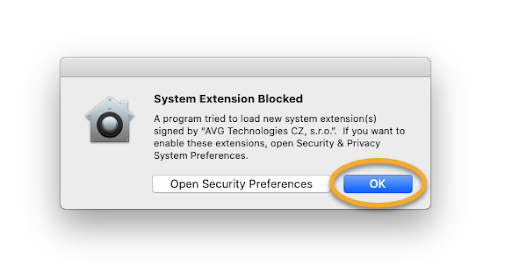
If a notification appears saying "System Extension Blocked", click "OK".
-
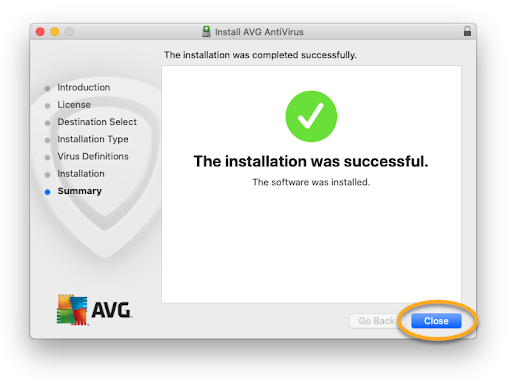
Click "Close".
-
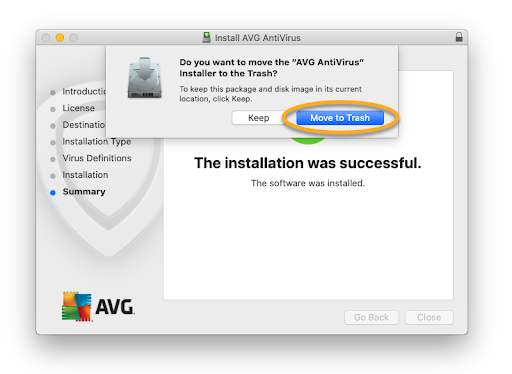
Select "Move to Trash".
-
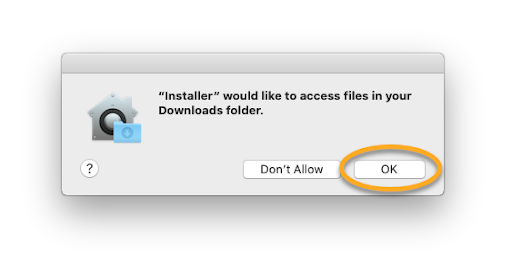
Press "OK" to grant AVG Antivirus permission to access your downloads folder.
-
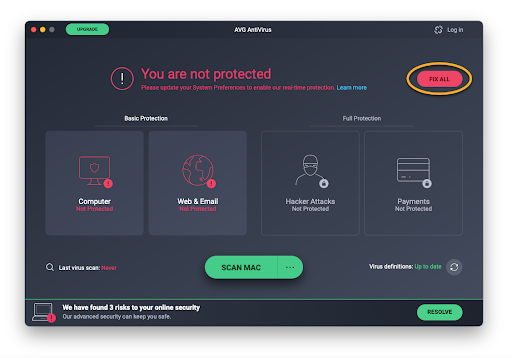
Click "Fix All" to launch the AVG installation assistant.
-
-
Activate AVG Antivirus for Mac:
To activate your paid subscription to AVG Antivirus and enjoy all its features, follow these steps:
-
Start by locating your activation code. You can find it in your order confirmation email. It may also be accompanied by detailed instructions, or you can access your orders by clicking "View My Orders!" .
-
Once you have your activation code, open AVG Antivirus.
-
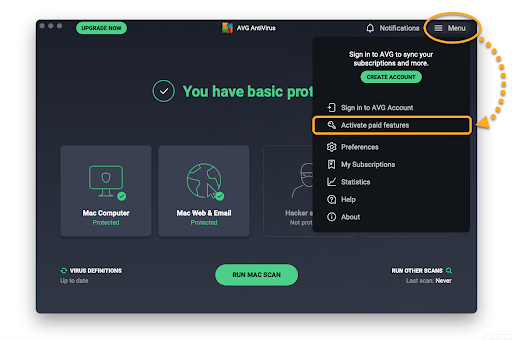
In the application, go to the menu by clicking on the icon with three horizontal lines (☰), then select "Enter Activation Code". Follow the instructions to enter your code and activate your subscription.
-
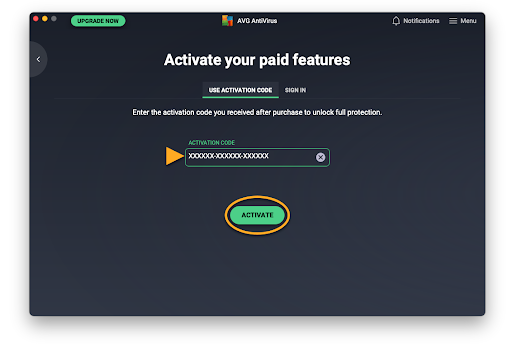
Manually enter or paste your activation code (including dashes) into the text box, then click "Activate".
-
Congratulations! Your antivirus is now activated and ready to protect your computer. You have successfully followed the steps, and your system is now secured with AVG. Take the time to explore the features of your new antivirus for a safer online experience. Stay vigilant and enjoy worry-free browsing.
-
-
Read Also:




© 2026 ASA Int. Services Pte Ltd All rights reserved